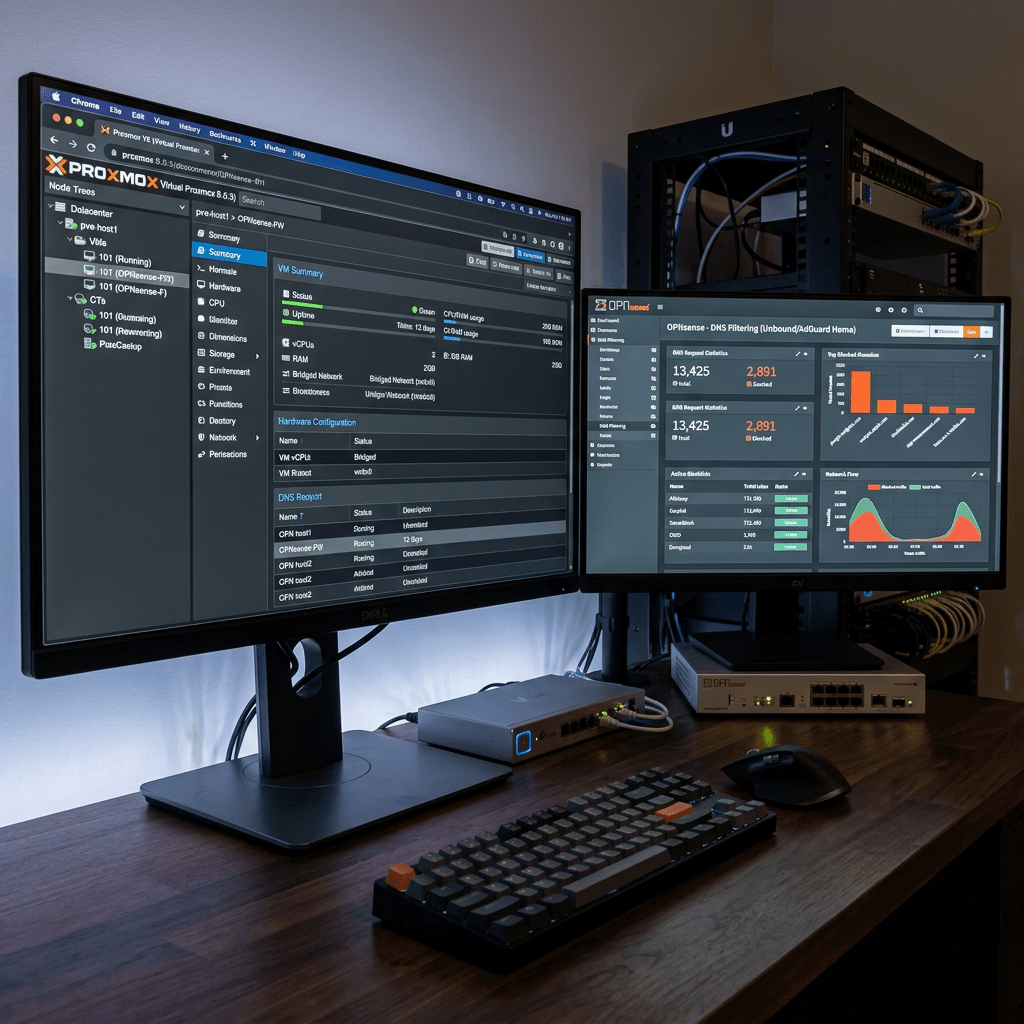
After getting Proxmox running on the NUC, the next step was installing OPNsense as a VM to act as the firewall and router for my protected LAN. I also set up DNS-level ad and tracker blocking directly on the firewall using Unbound DNS. Here is the full setup and every issue I ran into.
Why OPNsense in a VM
Running a firewall as a VM on Proxmox means the NUC handles both the hypervisor and network infrastructure in one box. OPNsense is a solid open source firewall based on FreeBSD. It handles routing, firewalling, DHCP, DNS filtering, and more. Running it as a VM gives you snapshots, easy reinstalls, and the ability to run other VMs alongside it.
Network Topology
New TP-Link router (main upstream, 192.168.13.0/24) |NUC onboard NIC -> Proxmox vmbr0 -> OPNsense WAN (vtnet0) |OPNsense LAN (vtnet1) -> Proxmox vmbr1 -> USB Ethernet NIC |Old TP-Link (AP/switch mode, 192.168.1.2, DHCP disabled) |Client devices (192.168.1.x)
Two networks exist: 192.168.13.0/24 upstream bypassing OPNsense, and 192.168.1.0/24 behind OPNsense as the protected LAN.
Installing OPNsense
Download the OPNsense ISO from opnsense.org and upload to Proxmox local storage under ISOs. Create a VM with 2 GB RAM, 16 GB disk, and two network interfaces: vmbr0 for WAN and vmbr1 for LAN. Boot from ISO and follow the installer. Default credentials are installer/opnsense. After install, remove the ISO and reboot.
Assigning Interfaces
The two virtual NICs show up as vtnet0 and vtnet1. Correct assignment:
| Interface | NIC | Role |
|---|---|---|
| WAN | vtnet0 | Connected to vmbr0 / upstream router |
| LAN | vtnet1 | Connected to vmbr1 / client network |
Mistake I made: vtnet1 got assigned as OPT1 instead of LAN. That left no LAN interface configured and clients could not get DHCP leases. Fix it by going back to the console and reassigning.
Configuring WAN and LAN
WAN gets its IP automatically via DHCP from the upstream router. In my case it received 192.168.13.30/24.
LAN needs a static IP. Set it to 192.168.1.1/24. Another mistake: LAN was accidentally set to DHCP client mode instead of static. OPNsense was trying to get an IP from a server that does not exist on the LAN side. Always set LAN to static. Enable the DHCP server on LAN to hand out 192.168.1.x addresses.
Old Router IP Conflict
The old TP-Link was still using 192.168.1.1 – same as OPNsense LAN. Fixed by logging into the old router and changing its IP to 192.168.1.2. Also disabled its DHCP server. Only use LAN ports on the old router, not the WAN port. After that change the network stabilized immediately.
Accessing the OPNsense Web UI
https://192.168.1.1Default credentials: root / opnsense
DNS Filtering with Unbound
OPNsense includes Unbound DNS as its built-in resolver. You can add blocklists directly to Unbound to filter ads and trackers at the DNS level for every device on the LAN without needing a separate Pi-hole or AdGuard.
The original plan was to forward DNS to a Raspberry Pi running AdGuard Home at 192.168.13.201. The problem: OPNsense Unbound kept handling DNS locally instead of forwarding cleanly to the Pi. Disabling Unbound broke browsing entirely. Decision: handle DNS directly on OPNsense using Unbound blocklists. Simpler, stable, all in one place.
In OPNsense go to Services > Unbound DNS > Blocklists and add:
https://adguardteam.github.io/HostlistsRegistry/assets/filter_1.txthttps://adguardteam.github.io/HostlistsRegistry/assets/filter_2.txthttps://raw.githubusercontent.com/hagezi/dns-blocklists/main/adblock/pro.txthttps://blocklistproject.github.io/Lists/tracking.txt
This is intentionally a lighter set than a full Pi-hole/AdGuard list. Unbound DNSBL handles blocklists differently and very large overlapping sets make DNS slower and reloads heavier. Start lean and stable.
Viewing DNS Logs
To see what is being blocked or resolved go to Services > Unbound DNS > Log File. You can watch DNS queries in real time and confirm blocklists are working.
Note on YouTube Ads
DNS blocking does not fully block YouTube ads. YouTube serves ads from the same domains as video content so you cannot block one without breaking the other. This is a known limitation of all DNS-level blockers. For YouTube use uBlock Origin in the browser.
 Hye Hacker