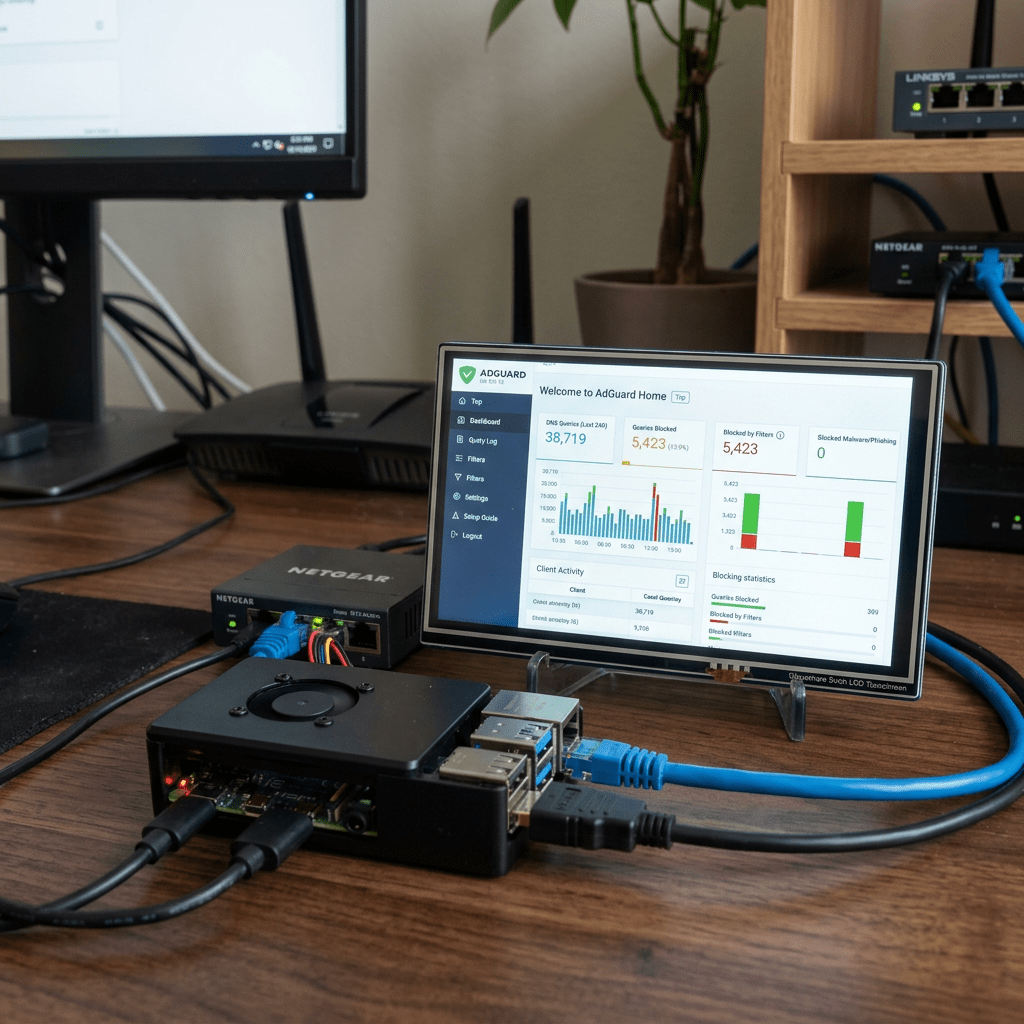
Before moving DNS filtering to OPNsense, I ran AdGuard Home on a Raspberry Pi as the network-wide DNS resolver. This is one of the cleanest ways to block ads and trackers for every device on your network without touching individual devices. Here is the full setup.
What Is AdGuard Home
AdGuard Home is a self-hosted DNS server with a built-in blocker. Every device on your network points to it for DNS. When a device tries to resolve a domain on a blocklist, AdGuard returns nothing and the request never leaves your network. No ads, no trackers, no beacons.
It runs as a lightweight service with a solid web UI for monitoring queries in real time. Compared to Pi-hole it supports DNS-over-HTTPS and DNS-over-TLS natively, has a cleaner UI, and handles large blocklists more efficiently.
Hardware
- Raspberry Pi (any model with 1 GB+ RAM works)
- Static IP assigned: 192.168.13.201
- Running Raspberry Pi OS Lite (no desktop needed)
Installing AdGuard Home
SSH into the Pi and run the official installer:
curl -s -S -L https://raw.githubusercontent.com/AdguardTeam/AdGuardHome/master/scripts/install.sh | sh -s -- -v
Once done, open the setup wizard at http://192.168.13.201:3000 and follow the prompts. Set admin UI port (3000) and DNS port (53), create a username and password. After setup the UI moves to http://192.168.13.201.
Configuring Upstream DNS
Under Settings > DNS Settings > Upstream DNS servers, set encrypted upstream servers:
https://dns.cloudflare.com/dns-queryhttps://dns.google/dns-querytls://1.1.1.1tls://8.8.8.8
Enable Parallel requests so AdGuard queries multiple upstreams simultaneously for speed. Using DNS-over-HTTPS or DNS-over-TLS means your upstream queries are encrypted and your ISP cannot see what you are resolving.
Adding Blocklists
Go to Filters > DNS blocklists > Add blocklist and add:
https://adguardteam.github.io/HostlistsRegistry/assets/filter_1.txthttps://adguardteam.github.io/HostlistsRegistry/assets/filter_2.txthttps://raw.githubusercontent.com/hagezi/dns-blocklists/main/adblock/pro.txthttps://blocklistproject.github.io/Lists/tracking.txthttps://raw.githubusercontent.com/StevenBlack/hosts/master/hosts
Click Update to download and compile the lists. AdGuard shows the total blocked domains count. For more aggressive filtering add the HaGeZi Ultimate list, but be careful as it may break some legitimate services.
Pointing Your Network at the Pi
In your router admin UI find DHCP settings and set Primary DNS to 192.168.13.201. Add 1.1.1.1 as a secondary fallback in case the Pi goes down. Devices pick up the new DNS on next DHCP renewal.
Keeping the Pi IP Static
Edit the DHCP config to assign a static IP:
sudo nano /etc/dhcpcd.conf
Add at the bottom:
interface eth0static ip_address=192.168.13.201/24static routers=192.168.13.1static domain_name_servers=1.1.1.1
sudo systemctl restart dhcpcd
Managing the Service
sudo systemctl status AdGuardHomesudo systemctl restart AdGuardHomesudo systemctl stop AdGuardHomesudo journalctl -u AdGuardHome -f
What You Get
The AdGuard Home dashboard shows total DNS queries, percentage blocked, top blocked domains, top clients by query volume, per-client query history, and a real-time query log. Smart TVs, phones, and IoT devices are often the most active and most aggressive with tracking.
Limitation: YouTube Ads
Same limitation as every DNS blocker. YouTube ads share domains with video content so they cannot be blocked at the DNS level without breaking video playback. For YouTube you need uBlock Origin in the browser.

